 Service Notifications
 My Downloads
 Blog
Blog
 AI
AI PSD
PSD INDD
INDD CDR
CDRDesign Guide
Fresh Windows Install for Designers – Don’t Start Designing Until You Do This
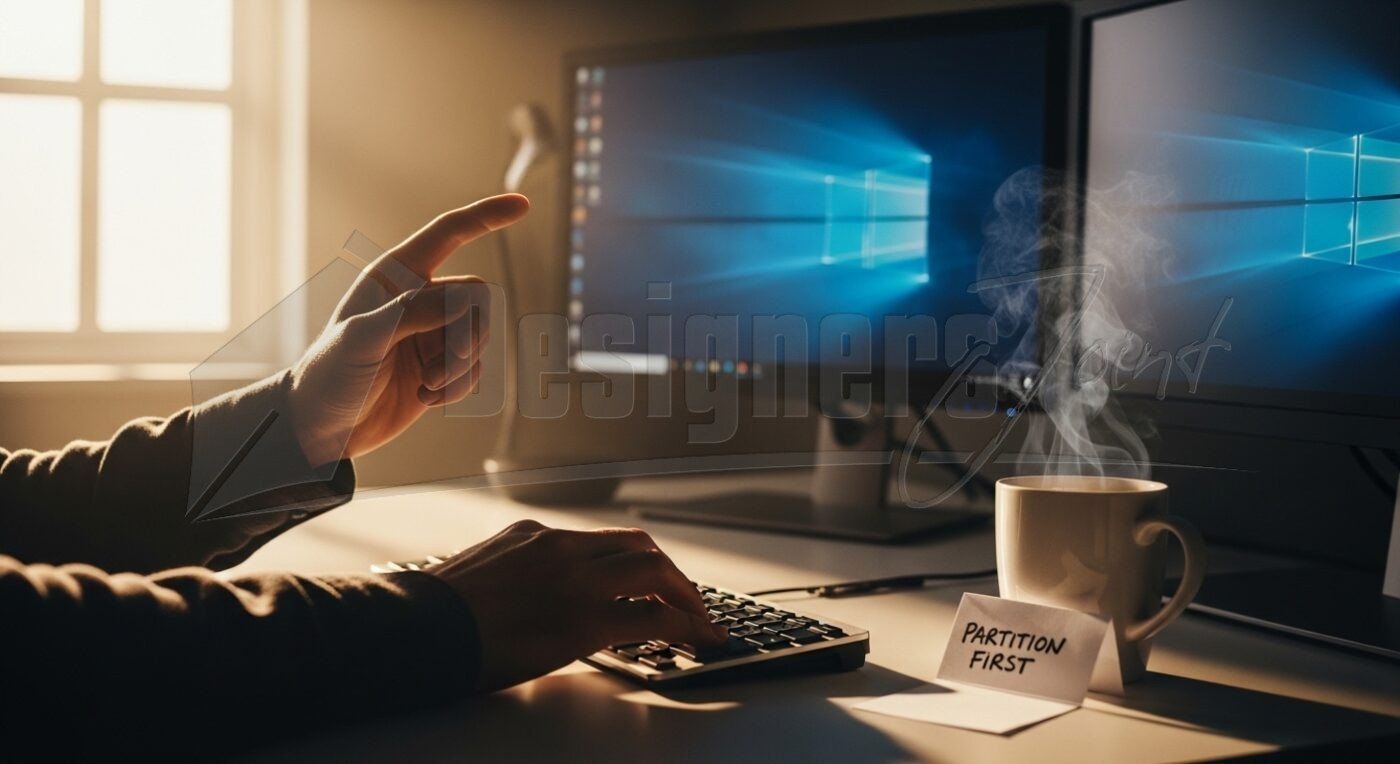
Fresh Windows Install? You’ve just wiped your drive clean. Windows is sparkling new. That design project deadline is looming, and your fingers are itching to open Illustrator. I’ve been there—so many times. few months ago, I sat exactly where you might be right now: fresh install complete, coffee steaming, ready to create magic.
I skipped “the boring setup stuff.” Three hours later, a rogue driver update corrupted my color profile. Two days of work vanished. I stared at a blue screen, heart pounding, realizing I had no restore point and everything lived on one fragile partition. That panic? I’ve made it my mission to ensure no designer feels it again.
This isn’t about tech jargon. It’s about protecting your craft. Your time. Your sanity. Before you place a single vector point or adjust one hue, these steps are non-negotiable. I’ll walk you through exactly what to do—no fluff, just hard-won lessons from rebuilding systems for studios and freelancers alike. Let’s build a foundation that works for you, not against you.
Why Your First Move After a Fresh Windows Install Isn’t Opening Photoshop
That creative urge is real. I get it. But jumping straight into design software after a fresh Windows install is like painting on wet plaster—it will crack. Windows’ default setup is a blank canvas for everyone, not a tailored workspace for you. Without intentional setup, you’re gambling with hours of work. I once watched a junior designer lose a client logo draft because she hadn’t configured backups. She’d spent the morning designing, not preparing. The tears were real. Don’t be her. Pause. Breathe. Do this first. Your future self will thank you over coffee tomorrow.
Partitioning Like a Pro: Carve Out Your Digital Sanctuary
Partitions aren’t just for IT folks. For designers, they’re your organizational backbone. Think of them as physical rooms in your studio: one for tools (OS), one for active projects, one for archives. When I rebuilt my main rig last year, I created three partitions:
- C: (120GB) – Only Windows and critical system files.
- D: (500GB) – All design apps, fonts, and current project files.
- E: (Remaining space) – Backups, reference libraries, personal files.
Why? When Windows needed a major update last month, it glitched. Because my projects lived on D:, I simply restored C: from a backup. Zero project loss. Zero panic. Creating partitions is easy: search “Create and format hard disk partitions” in Windows, shrink your main drive, and allocate space. Do this before installing anything. It takes 10 minutes. Skipping it risks everything. This is the bedrock of Fresh Windows Install (Partitions + Restore Points)? Don’t Start Designing Until You Do This.
Restore Points: Your 10-Minute Safety Net
A restore point is your “undo” button for the entire system. Updated a graphics driver that made your monitor look like a sunset filter? Revert. Installed software that conflicts with your suite? Roll back. I create one immediately after partitioning and before installing any third-party software. Here’s my ritual:
- Type “Create a restore point” in Windows Search.
- Select your C: drive > Configure > Turn on system protection.
- Click “Create” and name it “BASELINE – Post-Install Clean.” Do this now. Not after installing Photoshop. Not “when you have time.” I learned this after a Windows update once hijacked my Wacom tablet drivers mid-project. Reverting took 8 minutes. Without that restore point? Days of troubleshooting. Never skip this pillar of Fresh Windows Install (Partitions + Restore Points)? Don’t Start Designing Until You Do This.
Driver Discipline: Don’t Trust “Windows Update” for Color Accuracy
Windows Update will install functional drivers. But “functional” isn’t “accurate.” Generic GPU drivers often ignore color profiles. I once delivered a brand guide where blues printed muddy because I’d used the default NVIDIA driver. The client was not amused. Always go directly to manufacturer sites:
- GPU: NVIDIA Studio Driver or AMD Pro Driver (NOT the gaming version)
- Monitor: Download the ICC profile from Dell/Eizo/LG’s support page
- Peripherals: Wacom, X-Rite, etc. Install these before calibration. Verify colors look neutral in a grayscale image. This step alone prevents costly client revisions. It’s why Fresh Windows Install (Partitions + Restore Points)? Don’t Start Designing Until You Do This includes driver hygiene.
The Silent Guardian: Backup Strategy Before Pixel One
Partitions and restore points protect against system failure. But what about accidental deletion? Hardware death? I keep the 3-2-1 rule sacred:
- 3 copies of critical work (original + 2 backups)
- 2 different media (external SSD + cloud)
- 1 offsite (Backblaze or Dropbox) Set up your cloud sync now. Plug in that external drive. Configure automatic backups for your project partition (D:). I use Macrium Reflect Free for full partition images weekly. Last quarter, my SSD failed during a tight deadline. Because my D: partition was backed up hourly to cloud and nightly to SSD, I was back working in 47 minutes. No drama. No lost work. This mindset is core to Fresh Windows Install (Partitions + Restore Points)? Don’t Start Designing Until You Do This.
Calibration Isn’t Optional—It’s Professional Respect
You’ve got perfect drivers. Now trust your eyes? Don’t. Ambient light, panel variance, age—all lie to you. I use a X-Rite i1Display Pro, but even Windows’ built-in calibrator (search “Calibrate display color”) is better than nothing. Do this after drivers are installed, before opening a design file. Sit in your normal working light. Follow the steps slowly. Save the profile. I recalibrate monthly. Why? Because delivering work that looks “off” on a client’s screen damages trust. This final prep step honors your skill and their investment. It’s the quiet promise in Fresh Windows Install (Partitions + Restore Points)? Don’t Start Designing Until You Do This.
Your 15-Minute Pre-Design Checklist
- Before that first click:
- Partitions created (C:, D:, E:)
- Restore point “BASELINE” created
- Manufacturer GPU/monitor drivers installed
- Backup solution active and tested
- Display calibrated
Critical fonts/apps installed to D: drive Set a timer. Do this. Then—and only then—open your design app. That deep breath you take? That’s confidence.
You didn’t choose design to fight your computer. You chose it to create, solve, and inspire. These steps aren’t “tech overhead”—they’re professional respect for your craft. They transform anxiety into assurance. I’ve seen studios adopt this workflow and cut system-related downtime by 90%. Your creativity deserves a stable stage.
FAQs
Q: How many partitions do I really need if I’m short on drive space?
A: Minimum two. Keep C: lean (just Windows), and put everything else—apps, projects, fonts—on D:. Even on a 512GB SSD, allocate 120GB to C: and the rest to D:. It creates critical separation between system crashes and your work.
Q: Should I create a new restore point after every software install?
A: Yes—for major apps (Adobe Suite, CAD tools, GPU drivers). Name them clearly: “AFTER PHOTOSHOP INSTALL” or “POST-WACOM DRIVER.” It takes 60 seconds and gives you precise rollback options if conflicts arise.
Q: Can’t I just rely on Time Machine-style backups instead of partitions?
A: Backups are essential, but partitions add immediate protection. If Windows corrupts, restoring a full backup takes hours. With partitions, you often only need to refresh C: while D: (your projects) stays untouched and accessible. They work best together.
Q: I use cloud storage (Dropbox, etc.) for projects. Do partitions still matter?
A: Absolutely. Cloud sync protects against deletion or local hardware failure, but not against system instability while you’re working. If Windows crashes mid-save, a corrupted file can sync to the cloud. Partitions isolate your active workspace, and local backups give you version control before it hits the cloud. Never rely on just one layer.
