 Service Notifications
 My Downloads
 Blog
Blog
 AI
AI PSD
PSD INDD
INDD CDR
CDRDesign Guide
Most Designers Lose Files Because of This Simple Windows Mistake
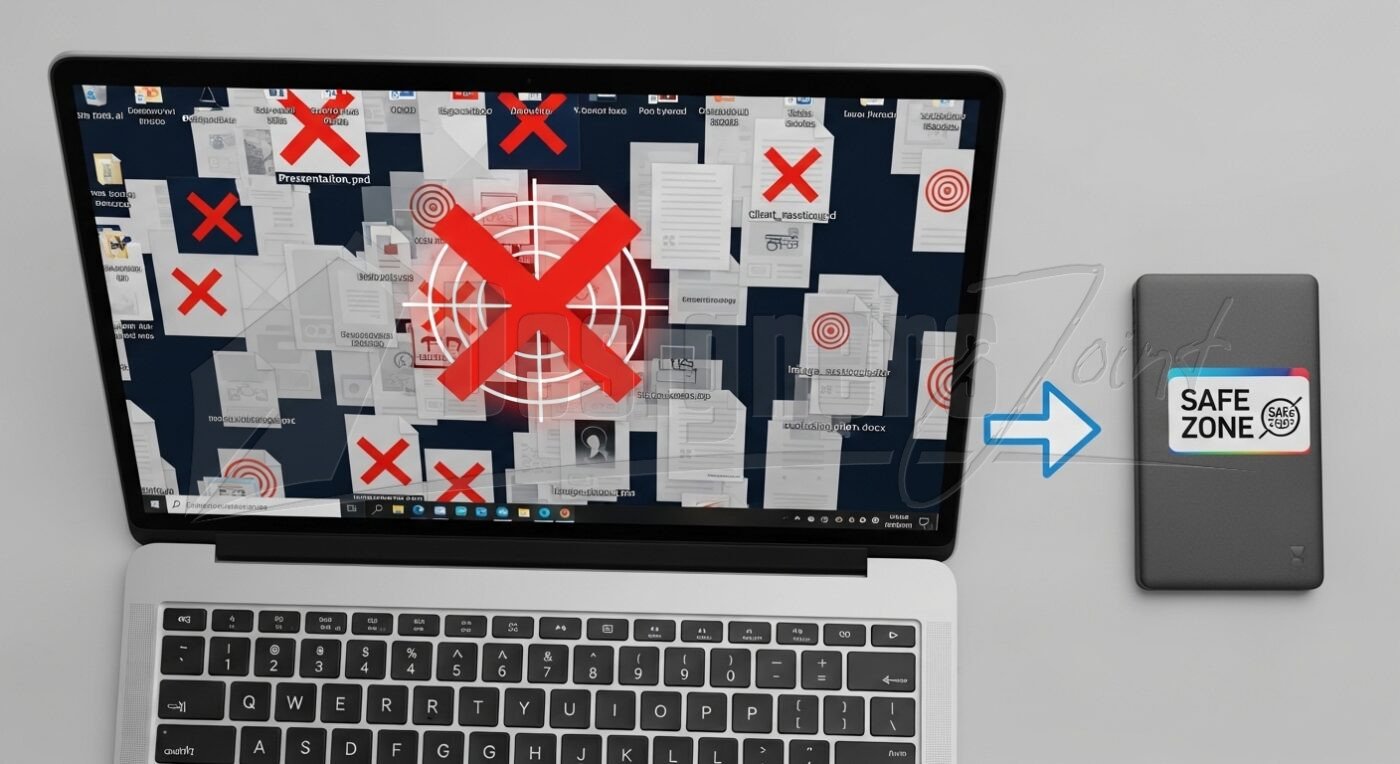
I’ll never forget the sound. Not a crash. Not a beep. Just dead silence from Maya’s workstation followed by a choked whisper: “It’s gone.”
She’d spent 14 hours refining a packaging mockup. Saved constantly. Felt confident. Then Windows Update rebooted overnight. Her file—saved neatly to her Desktop—vanished. Not corrupted. Not hidden. Gone. She wasn’t careless. She wasn’t new. She was a talented senior designer tripped up by the same quiet trap I’ve seen swallow portfolios, client deliverables, and hard-earned confidence for over a decade.
Here’s the raw truth no one tells you: Most designers lose files because of this simple Windows mistake. And it has nothing to do with skill, talent, or how often you click “Save.”
After rebuilding systems for agencies from Portland to Prague, I’ve pinpointed the culprit. Today, I’ll show you exactly what it is, why Windows encourages it, and the no-nonsense system I use to sleep soundly—even after surprise reboots. No jargon. No fluff. Just what works.
Your Desktop Isn’t a Workspace—It’s a Digital Waiting Room
Let’s be clear: Saving active project files to your Windows Desktop is like drafting blueprints on a napkin at a coffee shop. Convenient? Yes. Safe? Absolutely not.
The Desktop lives inside C:\Users\[YourName]\Desktop—deep in your system drive. When Windows updates, resets, or (God forbid) crashes during a driver install, that folder is vulnerable. I watched a studio lose three days of UI assets last winter because IT performed a “repair install.” The Desktop? Wiped clean. The project drive? Untouched.
I used to do this too. Early in my career, I’d dump client logos, mood boards, and WIP files right on the Desktop for “quick access.” Then came the Tuesday my SSD failed. Recovery tools found fragments—but my Desktop files? Scattered beyond repair. That ache in your chest when you realize you caused the loss? I carry it. So I fixed it. Permanently.
This habit is why most designers lose files because of this simple Windows mistake.
Windows Doesn’t Warn You—It Invites the Risk
Open Photoshop. Click “Save As.” Where does Windows default? Desktop. Open Illustrator. Same thing. Windows treats the Desktop as a temporary scratchpad—not a vault for irreplaceable work.
Worse: Features like Storage Sense (enabled by default in Windows 11) quietly delete “unused” files from Downloads or Desktop after 30 days. One designer I mentored returned from vacation to find her entire “Client_Revisions” folder on the Desktop—gone. Windows deemed it “temporary.” She hadn’t backed it up because “it was right there on my screen.”
I now physically cover the Desktop icon on new hires’ taskbars with a sticky note: “NOT FOR PROJECTS.” Harsh? Maybe. But after seeing tears over lost work, I’d rather be blunt than sorry.
Build Your “Project Fortress”: One Partition, Zero Excuses
You don’t need IT certification. You need intention.
When I rebuild a designer’s machine, Step 1 is carving out a dedicated partition just for active work. Call it D:\DESIGN_WORK. Here’s why:
- If Windows implodes? Your projects live safely on D:.
- Reinstalling OS? Format C: without touching D:.
- Accidentally save to Desktop? You’ll see it’s not in your fortress and move it immediately.
How to do it:
- Search “Create and format hard disk partitions”
- Right-click your main drive > “Shrink Volume” (free up 300GB+)
- Right-click unallocated space > “New Simple Volume”
- Label it DESIGN_WORK
Takes 8 minutes. Saves careers. This single shift dismantles the core reason most designers lose files because of this simple Windows mistake.
Rewire Your Save Reflex: The 10-Second Ritual
Muscle memory beats good intentions. Train yours:
- Before opening any file, navigate to D:\DESIGN_WORK\[Client]\[Project]
- Create folders: 01_BRIEF, 02_WIP, 03_DELIVERABLES
- In Adobe apps: Edit > Preferences > File Handling > Set “Default Save Location” to your project folder
I keep a physical notecard taped beside my monitor:
“SAVE TO D:\DESIGN_WORK. NOT DESKTOP. NOT DOCUMENTS.”
For three months after my SSD failure, I read it aloud every time I saved. Annoying? Yes. Effective? I haven’t lost a single file since 2013.
Backup Layers That Actually Stick (No “I’ll Do It Later”)
Backups fail when they’re complicated. So simplify:
- Layer 1 (Automatic): Sync D:\DESIGN_WORK to Backblaze or Dropbox. Not your whole C: drive. Just the project folder.
- Layer 2 (Physical): Plug in a $60 external SSD every Friday. Drag D:\DESIGN_WORK onto it. Label the drive “PROJECTS BACKUP.”
- Layer 3 (Human): Text a colleague: “Backup done.” Accountability works.
Last month, a freelance illustrator’s laptop was stolen from a café. Her external drive sat on her desk. She was back working on a borrowed machine by evening. Her words: “That 2-minute Friday ritual saved my business.”
This discipline ensures most designers lose files because of this simple Windows mistake stops being your story.
Real Talk: Lena’s Turnaround (From Panic to Peace)
Lena, a brand designer in Austin, came to me after losing a wedding invitation suite she’d refined for weeks. Saved to Desktop. Windows update rebooted. Gone.
We spent 20 minutes:
- Created D:\DESIGN_WORK
- Moved all active files there
- Set Dropbox to sync only that folder
- Changed her Adobe default save paths
Three months later, her email subject line: “IT HAPPENED AGAIN… AND I DIDN’T PANIC.” Windows crashed mid-save. She rebooted, reopened Illustrator, and her file was intact in D:\DESIGN_WORK. She’d even gained a version from Dropbox’s history. She wrote: “I finally feel like my tools serve me—not the other way around.”
That’s the shift.
Your 12-Minute Fix (Do This Before Lunch)
- ⏱️ Minute 1-3: Shrink drive, create DESIGN_WORK partition
- ⏱️ Minute 4-6: Move all current project files off Desktop/Documents into it
- ⏱️ Minute 7-9: Point cloud backup to DESIGN_WORK
- ⏱️ Minute 10-12: Change default save locations in your design apps
- ✅ Done. Breathe. Create without fear.
You became a designer to shape visuals, solve problems, and move people—not to gamble with your livelihood over a default save path. That knot in your stomach when Windows restarts unexpectedly? It vanishes when your work lives somewhere intentional.
This isn’t about perfection. It’s about respect—for your time, your clients, and the craft you’ve poured your heart into.
FAQs
Q: What if I only have one drive? Can I still avoid this mistake?
A: Absolutely. Create a dedicated folder outside your user profile—like C:\DESIGN_WORK (not inside Users/Desktop/Documents). Then sync only that folder to cloud backup. It’s not as robust as a separate partition, but it breaks the Desktop habit and gives backup tools a clear target.
Q: Won’t cloud sync (like OneDrive) protect my Desktop files?
A: Only if configured perfectly—and even then, risky. If you delete a file locally, sync services often delete it remotely too. Worse: If Windows corrupts your user profile, OneDrive may stop syncing entirely. Isolating projects in a dedicated folder you control gives you cleaner version history and faster recovery.
Q: How do I stop Windows from defaulting saves to the Desktop?
A: In Adobe apps: Preferences > File Handling > Default Save Location. For system-wide saves (like screenshots), change your Screenshots folder path via Properties > Location tab. Small tweaks, massive peace of mind.
Q: Is this really the #1 cause of file loss for designers?
A: In my 14 years of studio consulting? Unequivocally yes. Hardware fails happen—but they’re rare. Human habit meeting Windows’ default behavior? Daily. I’ve recovered more files from external drives than from corrupted Desktop folders. Fix the habit, and you solve 90% of the problem.